> ## Documentation Index
> Fetch the complete documentation index at: https://docs-dev.auth0-mintlify.app/llms.txt
> Use this file to discover all available pages before exploring further.
> Configure ACUL using the Auth0 Dashboard, Management API, or IaC tools.
# Configure ACUL
You can configure ACUL using the Auth0 Dashboard, Auth0 Management API, and Infrastructure-as-Code (IaC) tools. Each method modifies the same per-screen rendering configuration object.
To configure ACUL, make sure your custom configuration files and assets are hosted on a public CDN.
To understand the rendering configuration object and its properties, read [ACUL Rendering Configuration Reference](/docs/customize/login-pages/advanced-customizations/configure/reference).
## Auth0 Dashboard
You can use the Dashboard to customize your screens with ACUL:
A. Navigate to [Dashboard > Branding > Universal Login](https://manage.auth0.com/dashboard/#/universal-login/customizations-new)
1. Select **Customize authentication screens**.
2. Select a screen to customize.
3. From **Settings > Rendering mode** select **Advanced mode**.
4. (Optional) Select **Use custom page template**.
5. (Optional) Select **Advanced mode filters**.
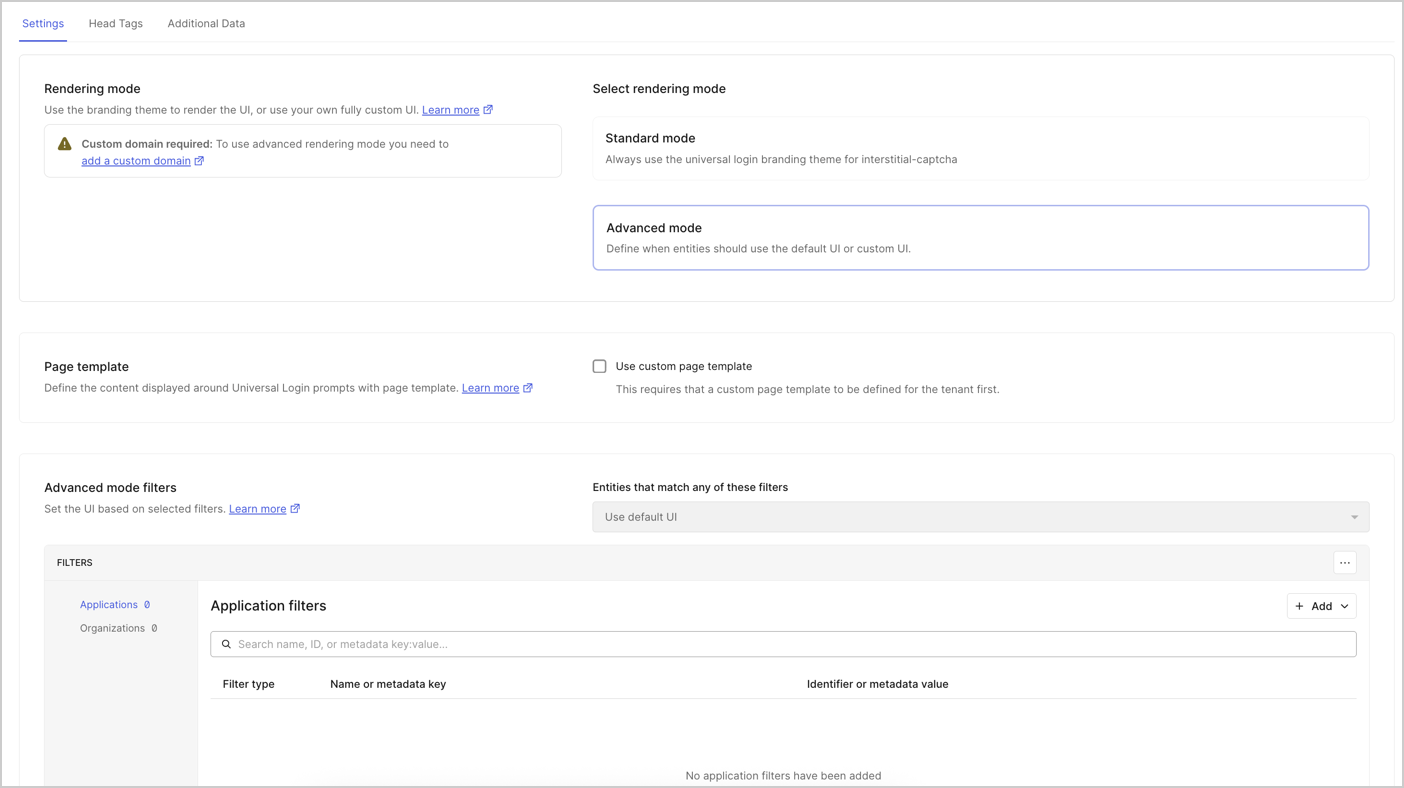 6. Select **Head Tags** to add your own HTML `Head Tags`.
7. (Optional) Select **Additional Data** to select which additional data to send to the browser.
**Additional Data** lets you add optional context data properties. For example: the opt-in context data from [`user`](/docs/libraries/acul/js-sdk/Screens/interfaces/UserMembers).
B. Select **Save & Publish**.
## Infrastructure-as-Code (IaC)
Configure ACUL with IaC tools, including:
* The **Auth0 CLI's** [`auth0 acul`](https://auth0.github.io/auth0-cli/auth0_acul.html) command.
* The **Auth0 Terraform Provider's** [`auth0_prompt_screen_renderer`](https://registry.terraform.io/providers/auth0/auth0/latest/docs/resources/prompt_screen_renderer) resource.
* The **Auth0 Deploy CLI's** [`prompts`](https://github.com/auth0/auth0-deploy-cli/blob/master/docs/resource-specific-documentation.md#prompts) resource.
## Auth0 Management API
Use the Auth0 Management API endpoints to configure Universal Login screens individually or to update multiple screens with one API call. You must have [Management API access token](/docs/secure/tokens/access-tokens/management-api-access-tokens) in the request.
**Individual screen configuration**
* The [`GET /v2/prompts/{prompt}/screen/{screen}/rendering` endpoint](/docs/api/management/v2/prompts/get-rendering) retrieves the configuration for a single screen.
* The [`PATCH /v2/prompts/{prompt}/screen/{screen}/rendering` endpoint](/docs/api/management/v2/prompts/patch-rendering) configures ACUL on a single screen.
**Bulk screen configuration**
* The [`GET /v2/prompts/rendering` endpoint](/docs/api/management/v2/prompts/get-all-rendering) retrieves configurations for all screens.
* The [`PATCH /v2/prompts/rendering` endpoint](/docs/api/management/v2/prompts/patch-bulk-rendering) updates screens in bulk.
6. Select **Head Tags** to add your own HTML `Head Tags`.
7. (Optional) Select **Additional Data** to select which additional data to send to the browser.
**Additional Data** lets you add optional context data properties. For example: the opt-in context data from [`user`](/docs/libraries/acul/js-sdk/Screens/interfaces/UserMembers).
B. Select **Save & Publish**.
## Infrastructure-as-Code (IaC)
Configure ACUL with IaC tools, including:
* The **Auth0 CLI's** [`auth0 acul`](https://auth0.github.io/auth0-cli/auth0_acul.html) command.
* The **Auth0 Terraform Provider's** [`auth0_prompt_screen_renderer`](https://registry.terraform.io/providers/auth0/auth0/latest/docs/resources/prompt_screen_renderer) resource.
* The **Auth0 Deploy CLI's** [`prompts`](https://github.com/auth0/auth0-deploy-cli/blob/master/docs/resource-specific-documentation.md#prompts) resource.
## Auth0 Management API
Use the Auth0 Management API endpoints to configure Universal Login screens individually or to update multiple screens with one API call. You must have [Management API access token](/docs/secure/tokens/access-tokens/management-api-access-tokens) in the request.
**Individual screen configuration**
* The [`GET /v2/prompts/{prompt}/screen/{screen}/rendering` endpoint](/docs/api/management/v2/prompts/get-rendering) retrieves the configuration for a single screen.
* The [`PATCH /v2/prompts/{prompt}/screen/{screen}/rendering` endpoint](/docs/api/management/v2/prompts/patch-rendering) configures ACUL on a single screen.
**Bulk screen configuration**
* The [`GET /v2/prompts/rendering` endpoint](/docs/api/management/v2/prompts/get-all-rendering) retrieves configurations for all screens.
* The [`PATCH /v2/prompts/rendering` endpoint](/docs/api/management/v2/prompts/patch-bulk-rendering) updates screens in bulk.